Installing the JewelSuite Floating License Server
Firewall requirements: The license server uses two TCP ports that must be open between the server and all client machines:
- The lmgrd port (default 10000), configured on the
SERVERline of the license file. Clients connect to this port to contact the license manager. - The vendor daemon port, configured on the
DAEMONline of the license file. This is a separate port used for the actual feature checkout. By default, the vendor daemon uses a random port at startup; configuring a static port (step 6 below) is required for reliable firewall rules.
The easiest way to configure the firewall is to allow joa.exe and lmgrd.exe as permitted applications in the Windows Firewall. Alternatively, open both ports explicitly for TCP traffic.
JewelSuite uses FlexNet Licensing version 11.19.9.1. To set up a new floating license server, follow these steps:
- Download the JewelSuite Floating License Executables for Windows from the Baker Hughes Company download portal and copy the package to the server you have received a license file for.
- Extract the zip file and copy the contents to a versioned folder on the server, for example:
C:\Licensing\JewelSuite\11.19.9.1\ - Copy the license file you received by email into that same folder.
- (Optional) By default,
lmgrdlistens on port 10000. To use a different port, open the license file in a text editor and change the port number at the end of theSERVERline:SERVER hostname hostid 10000This port value is what users must enter in the JewelSuite Licensing Wizard when connecting to the server. - (Optional) By default, the vendor daemon selects a random port at each startup. A static port is required if you need to open specific firewall rules for the vendor daemon. To configure a static port, open the license file in a text editor and add a
PORT=argument to theDAEMONline:You can use any available port number in place of 10001. Ensure this port is also opened in your firewall.DAEMON joa joa PORT=10001 - Right-click lmtools.exe and select Run as Administrator.
-
On the Config Services tab, complete the fields as follows:
Service Name Enter a descriptive name that includes the version number, such as JewelSuite Floating License Service 11.19.9.1.
Path to the lmgrd.exe file Use the first Browse button to select
lmgrd.exefrom the folder created in step 2.Path to the license file Use the second Browse button to select the license file copied in step 3.
Path to the debug log file Use the third Browse button to specify the full path and filename for the log file, for example:
C:\Licensing\JewelSuite\11.19.9.1\license.log. You must specify both the folder and the filename. lmtools will not create the log file if only a folder is selected.Check both Use Services and Start Server at Power Up so the license server starts automatically after a server reboot.
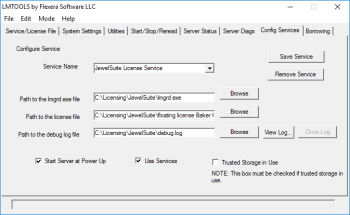
LMTools settings click to enlarge
- Click Save Service to save the configuration.
- Go to the Start/Stop/Reread tab and click Start Server.
-
Go to the Server Status tab and click Perform Status Enquiry. Confirm that
lmgrdand joa are both listed as running and that the expected features are shown.Then return to the Config Services tab and click View Log. Verify the log lists the licensed features without errors.
If the log shows an error that you cannot resolve, see Troubleshooting license errors. If you need further assistance, contact the support department at SoftwareSupport@bakerhughes.com and include the log file as an attachment.